Instructions for creating a Power Automate workflow to Create SharePoint Fields from a Power Apps Collection
- Create a new flow
- Use the When Power Apps calls a flow (V2) trigger

- Create two text parameters.
- One for the collection of fields to create
- One for the root URL of the SharePoint site you want to create.

- Add a Parse JSON step
- In the content place the fields to create parameter name you created in the trigger
- In the Schema, paste the following directly into the Schema window (not using the sample payload link)
{
"type": "array",
"items": {
"type": "object",
"properties": {
"Member": {
"type": "string"
},
"ParentList": {
"type": "string"
},
"Title": {
"type": "string"
},
"Value": {
"type": "integer"
}
},
"required": [
"Member",
"ParentList",
"Title",
"Value"
]
}
}

- Add an Initialize Variable step
- Rename this to Initialize varListName
- For the Name put in varListName
- Type = String
- Value leave blank
- Rename this to Initialize varListName

- Add an Initialize Variable step
- Rename this to Initialize varFieldTypeKind
- For the Name put in varFieldTypeKind
- Type = Integer
- Value leave blank
- Rename this to Initialize varFieldTypeKind
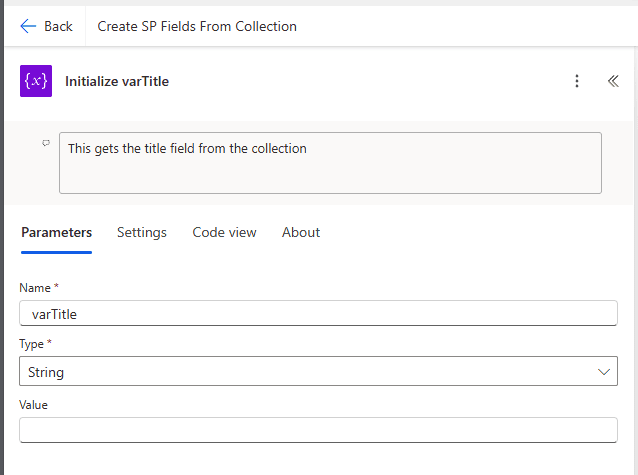
- Add an Initialize Variable step
- Rename this to Initialize varTitle
- For the Name put in varTitle
- Type = String
- Value leave blank
- Rename this to Initialize varTitle

- Add an Initialize Variable step
- Rename this to Initialize varType
- For the Name put in varType
- Type = String
- Value leave blank
- Rename this to Initialize varType
- Add an Apply to Each step
- In the parameters for the Apply to each add the outputs from the Parse JSON step.
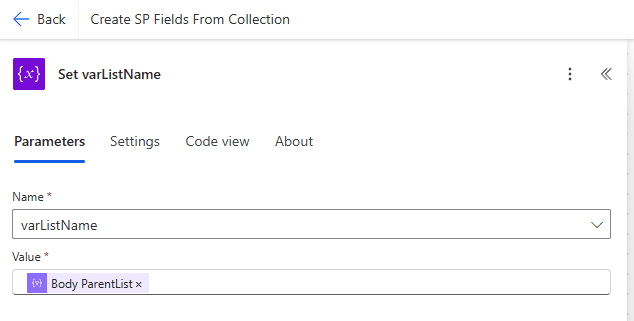
- Inside the Apply to each step add Set variable step
- Rename this to Set varListName
- In the Name field select varListName
- In the value field put the Body ParentList from the Parse JSON step
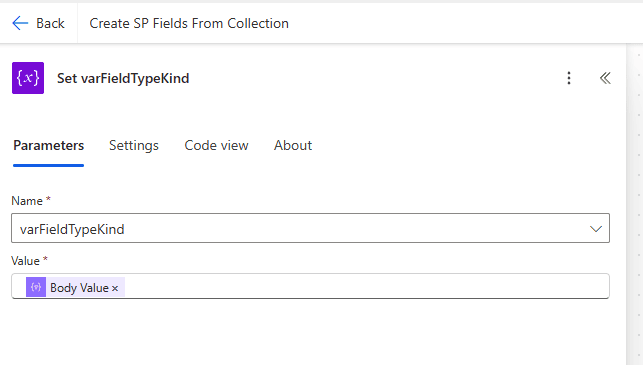
- Inside the Apply to each step add Set variable step
- Rename this to Set varFieldTypeKind
- In the Name field select varFieldTypeKind
- In the value field put the Body Value from the Parse JSON step
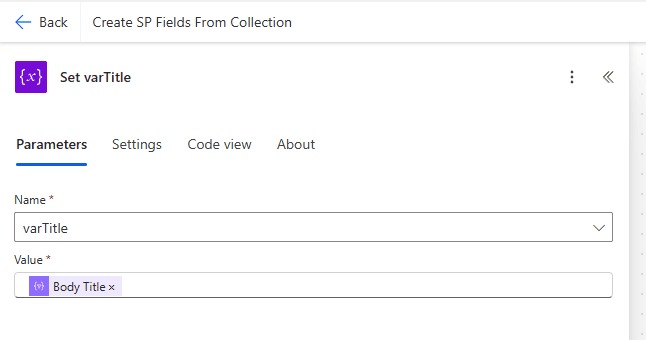
- Inside the Apply to each step add Set variable step
- Rename this to Set varTitle
- In the Name field select varTitle
- In the value field put the Body Title from the Parse JSON step
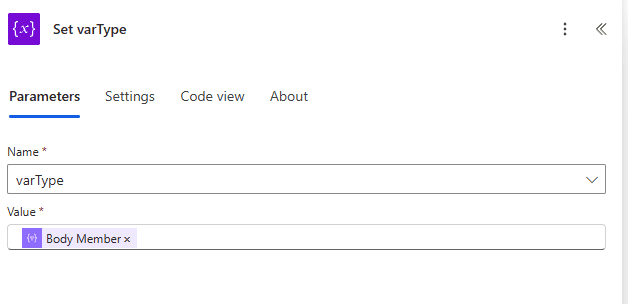
- Inside the Apply to each step add Set variable step
- Rename this to Set varType
- In the Name field select varType
- In the value field put the Body Member from the Parse JSON step

- Inside the Apply to each step add a step to send an http request to SharePoint
- In the site address add the root URL parameter you created in the trigger.
- In the Method put POST
- In the Uri put _api/web/lists/GetByTitle('@{variables('varListName')}')/fields ***note:@{variables('varListName') should be the variable varListName
- Select both of the advanced parameters from the drop down, Headers and Body
- In the Headers add Accept in the left had box and application/json in the right one
- In the second row put Content-Type in the left box and application/json in the right one
- In the Body put
{
'FieldTypeKind': @{variables('varFieldTypeKind')},
'Title':'@{variables('varTitle')}'
}
In the body @{variables('varFieldTypeKind') is the BaseTemplate field and the Title is the Title field from the Parse JSON step.
- Optionally you can also add another Send an HTTP Request to SharePoint step to add the field to the default view for the list.

